

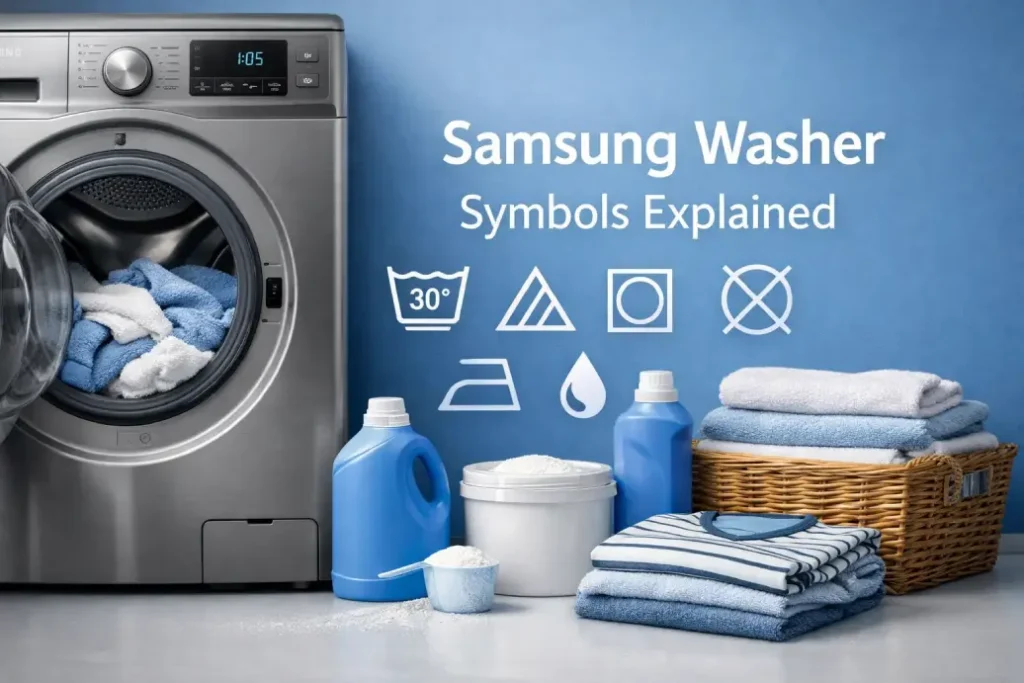
Modern washing machines display a variety of icons, indicators, and buttons that help you understand exactly what your appliance is doing. If you own a Samsung washer, you may notice several symbols on the control panel. Understanding these Samsung washer symbols can make it easier to operate your machine, choose the right settings, and avoid confusion during a wash cycle.
Unlike error codes, Samsung washing machine symbols do not indicate a malfunction. Instead, they provide useful information about the selected cycle, active features, or current washer status.
Below you will find a detailed guide explaining the most common Samsung washer icons meaning, along with practical tips for using them correctly.
| Symbol | Name | Explanation |
|---|---|---|
 |
Garment+ | The T-shirt with a plus icon indicates that you can pause the cycle and add more clothing during washing. Some Samsung washers support AddWash doors for easier access. |
 |
Intensive | This option is used for heavily soiled laundry. When activated, the washing time is extended to improve cleaning performance. |
 |
Child Lock | The smiley lock icon means Child Lock is enabled. Most buttons are disabled to prevent accidental changes during operation. |
 |
Door Lock | The padlock or key icon shows that the washer door is locked during a cycle or when it is unsafe to open. |
 |
Delay Start | The clock symbol indicates that the washing cycle is scheduled to start later at a preset time. |
 |
Time Remaining | The hourglass icon displays how much time remains before the washing cycle finishes. |
 |
Signal Off | The crossed-out speaker or bell icon means that end-of-cycle sounds have been turned off. |
 |
Pure Cycle / Self Clean | The drum icon reminds you to run a washer cleaning cycle to remove detergent buildup and odors. |
 |
Rinse / Extra Rinse | The rinse icons allow you to increase the number of rinse cycles or enable extra rinse for better detergent removal. |
 |
Steam | The cloud symbol shows that the steam feature is active. Steam helps remove stains and improves washing efficiency. |
 |
Interior Lamp | The light bulb icon indicates that the drum light inside the washer is turned on. |
 |
Spin / No Spin | This icon shows the spin setting. Selecting No Spin disables the final spinning stage after draining. |
 |
Bubble Soak | This feature pre-soaks laundry in bubbles to help remove stubborn stains before the main wash cycle. |
 |
Prewash | Adds an additional wash cycle before the main washing program for very dirty clothes. |
 |
Options | Used to select additional washing features depending on the selected program. |
 |
Temperature | This button adjusts the water temperature for the selected washing cycle. |
 |
Easy Iron | Reduces wrinkles by adjusting the spinning process, making clothes easier to iron. |
 |
Smart Check | Diagnostic mode that allows you to check washer problems using the Samsung SmartThings app. |
 |
Smart Control | The Wi-Fi icon shows that the washing machine is connected to your network and can be controlled through the SmartThings app. |
Why Understanding Samsung Washer Symbols Matters
Many users assume that any icon appearing on the display means something is wrong. However, symbols on a Samsung washing machine usually serve as helpful indicators rather than warnings.
Knowing what each icon means helps you:
- Select the correct washing settings
- Understand when certain features are activated
- Avoid interrupting a cycle at the wrong time
- Maintain your washing machine properly
Keep in mind that Samsung washer symbols may vary depending on the model, but most modern machines use similar icons. Understanding Samsung washer symbols makes it much easier to operate your washing machine efficiently. These icons provide valuable information about cycle status, special features, and maintenance reminders.
By learning the meaning of Samsung washing machine icons, you can select the right settings, care for your laundry properly, and keep your washer running smoothly for years. If you ever encounter unfamiliar symbols or suspect a malfunction, checking the user manual or consulting a professional repair service can help resolve the issue quickly.